A desktop command center for aircraft design studies.
RCAIDE GUI turns the RCAIDE research workflow into a guided visual workspace for defining aircraft, validating geometry, configuring analyses, and running mission simulations.
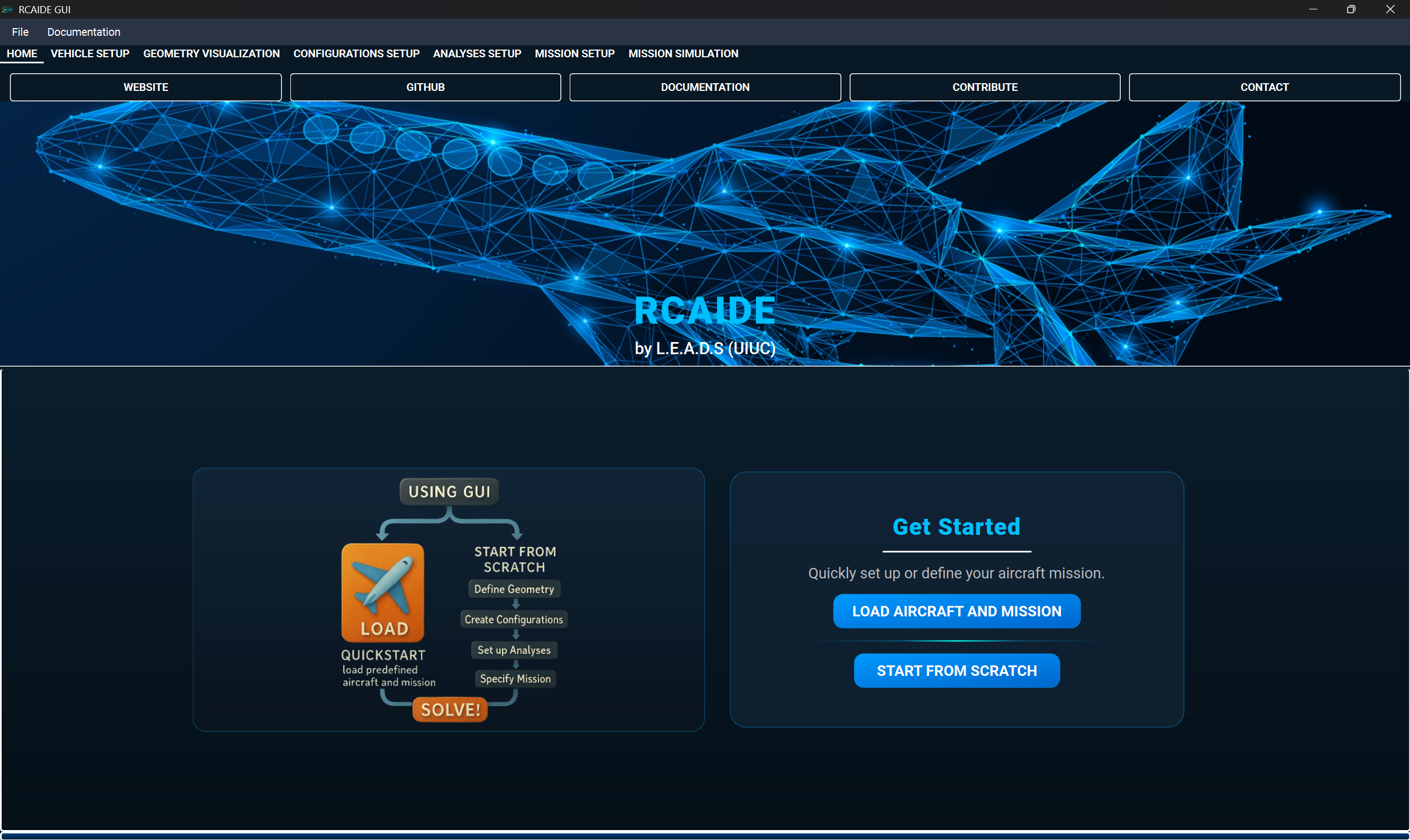
Quick Start
Choose the option that matches your situation.
Built for research iteration, not just documentation.
RCAIDE GUI gives engineers, researchers, and students a visual layer over RCAIDE's aircraft design ecosystem. It keeps vehicle setup, configuration, mission construction, simulation, and result review connected in one desktop environment.
Each interface area supports a specific step in the aircraft design workflow, from defining geometry to reviewing mission output.

Developed by the Laboratory for Emerging Aircraft Design and Systems at the University of Illinois Urbana-Champaign.
Visit LEADSWorkflow
Three compact phases organize the GUI around model definition, analysis setup, and result review.
Interface Modules
Each module is a focused working area with its own job in the design study.
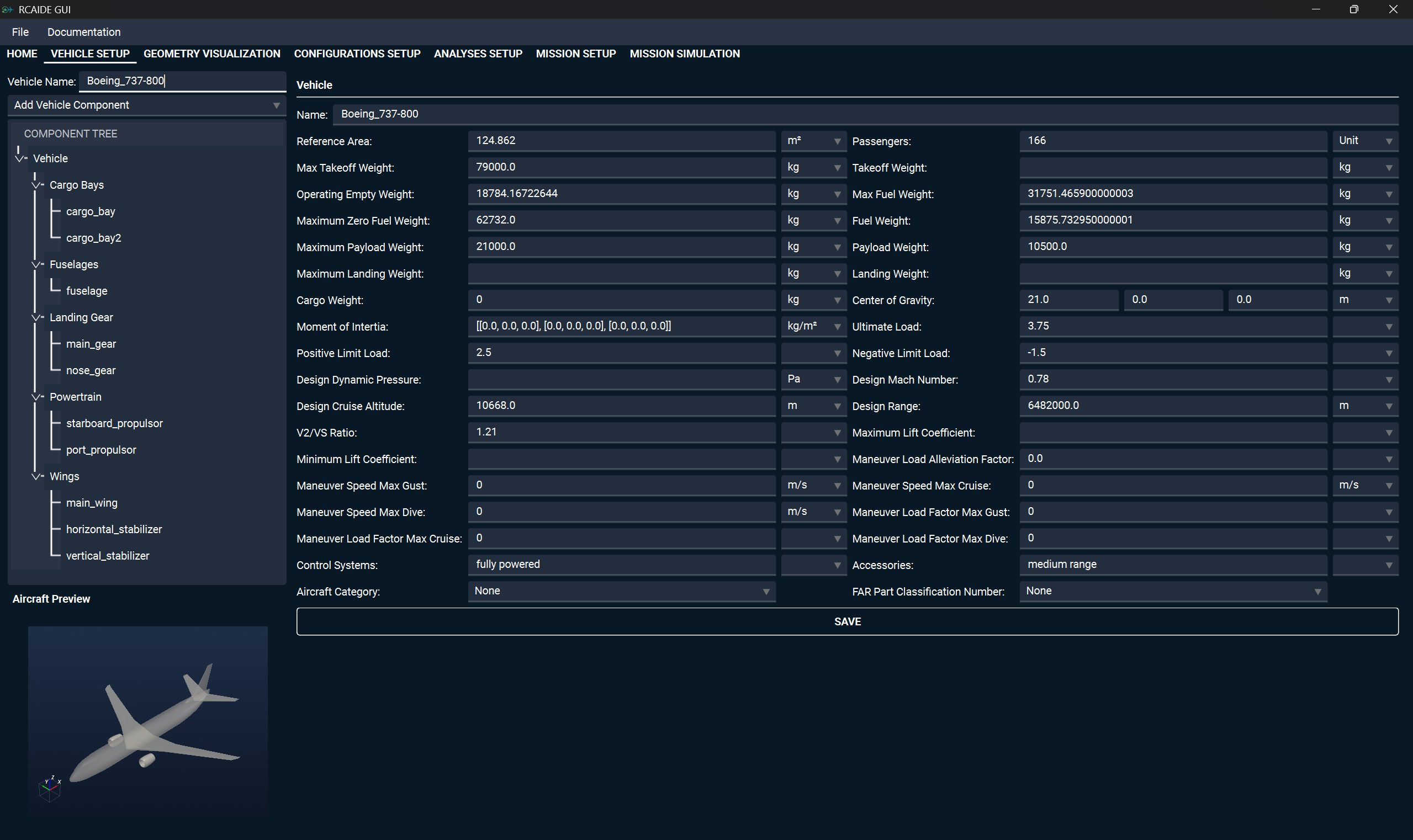
Vehicle Setup
Build aircraft geometry through a component-based workflow, adding wings, fuselages, landing gear, propulsors, booms, and other vehicle components while keeping the design parameters organized.
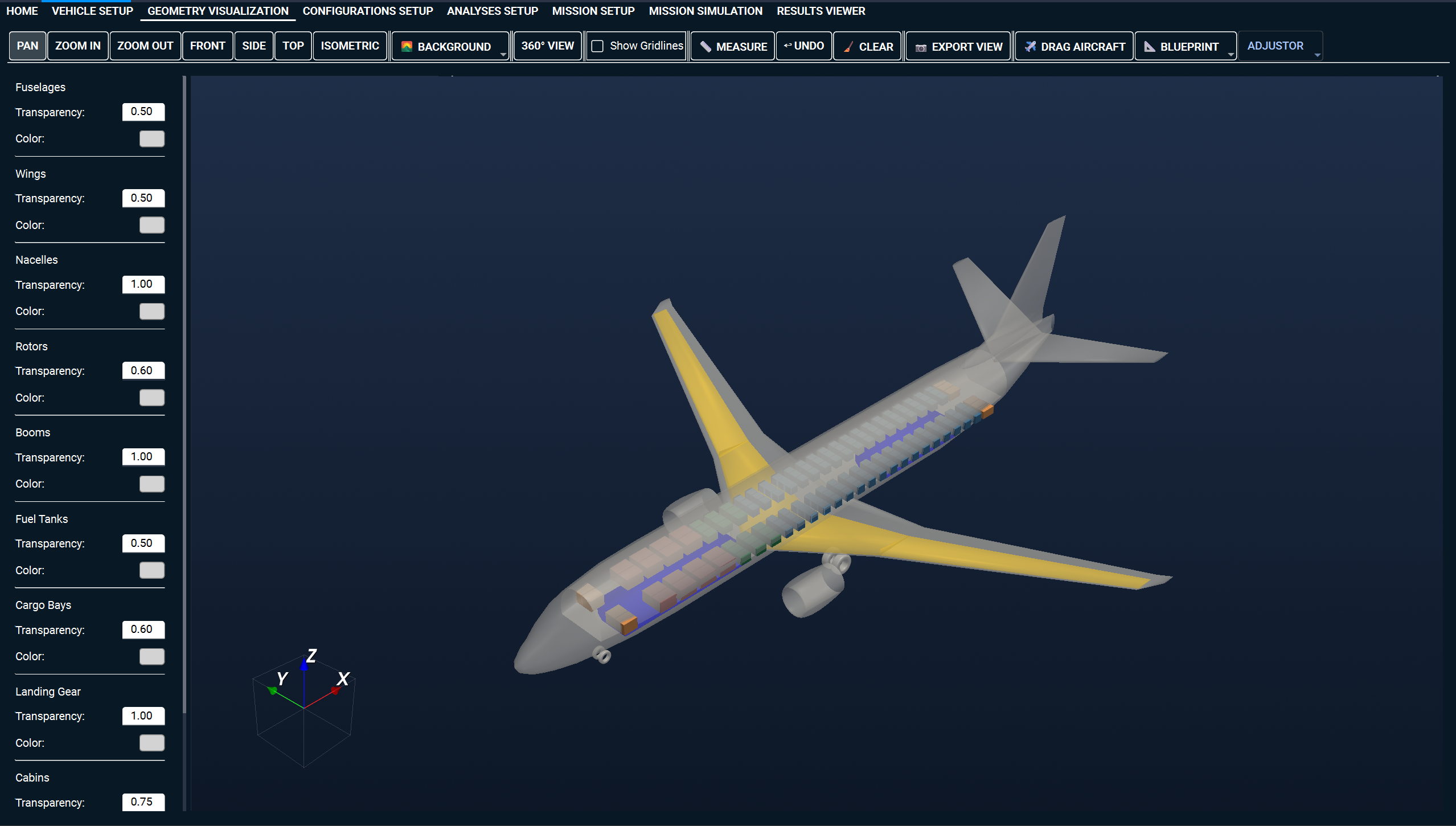
Geometry Visualization
Inspect aircraft geometry in a dedicated 3D VTK environment with interactive rotation, zooming, measurement tools, customizable colors, transparency controls, predefined views, and image export.
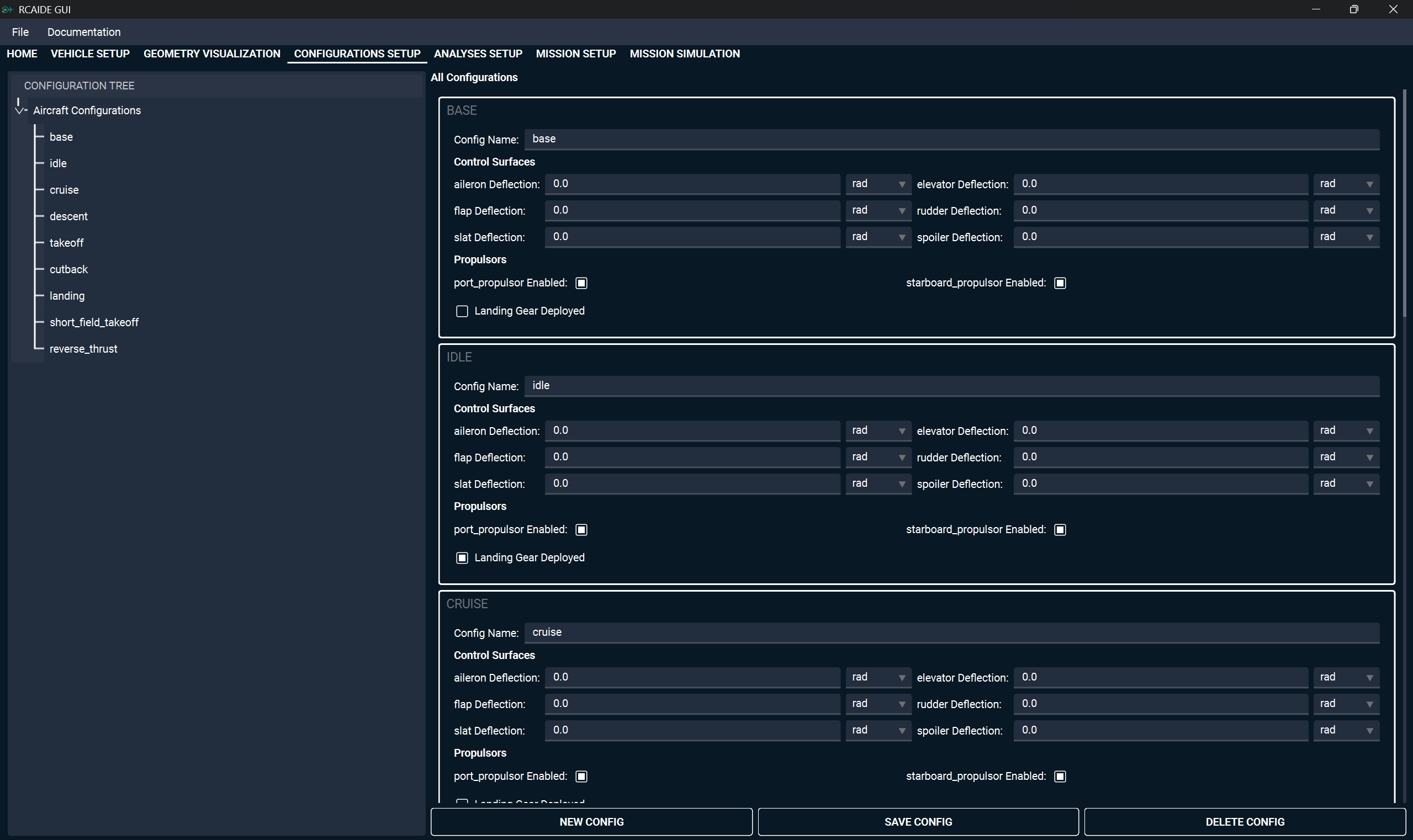
Configurations Setup
Define aircraft operating states for takeoff, cruise, landing, and custom mission conditions, including control surface deflections, landing gear deployment, and active propulsion systems.
Analyses Setup
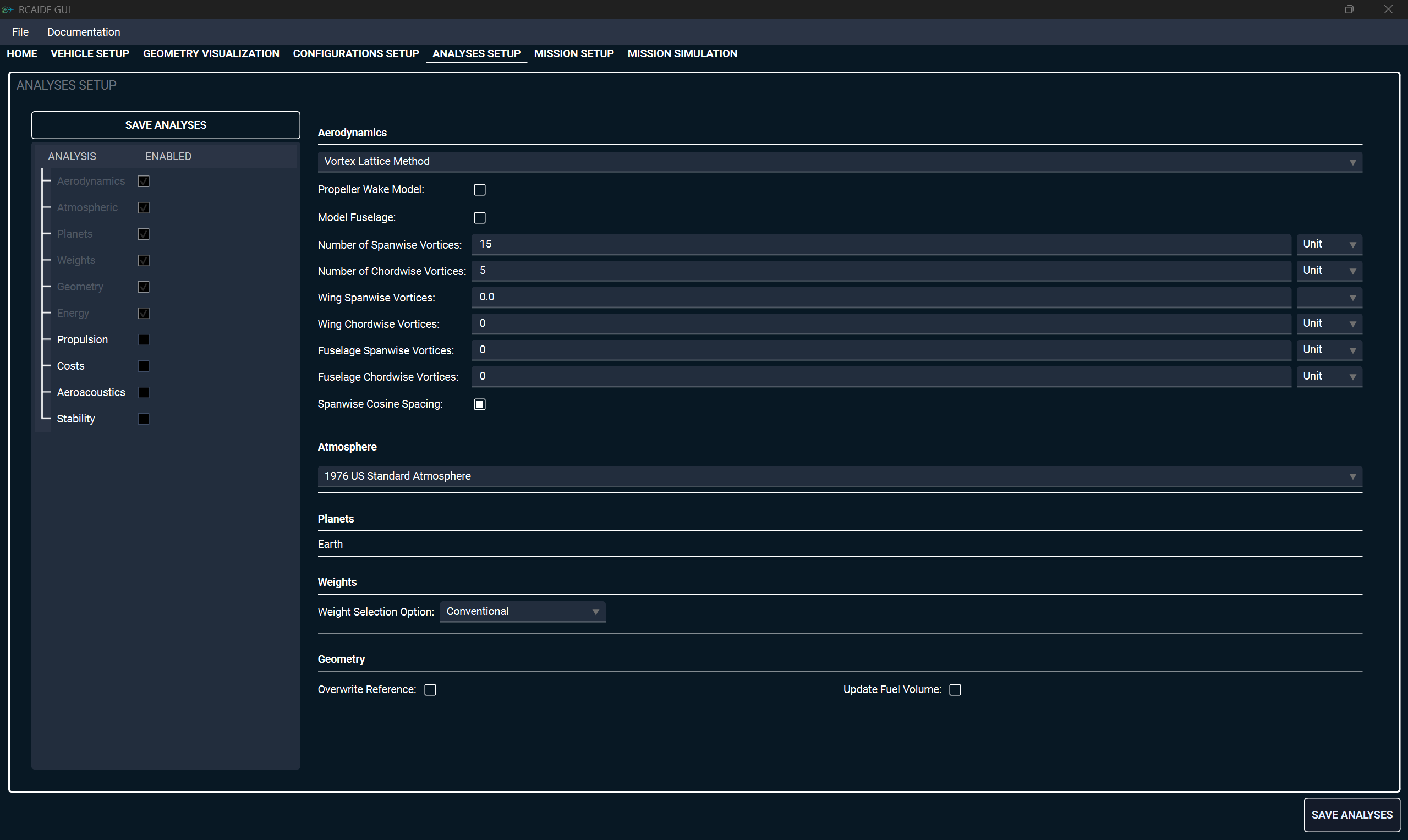
Configure aerodynamic methods, atmospheric models, weight estimation approaches, and aeroacoustic settings through controls that mirror RCAIDE's analysis framework.
Mission Setup
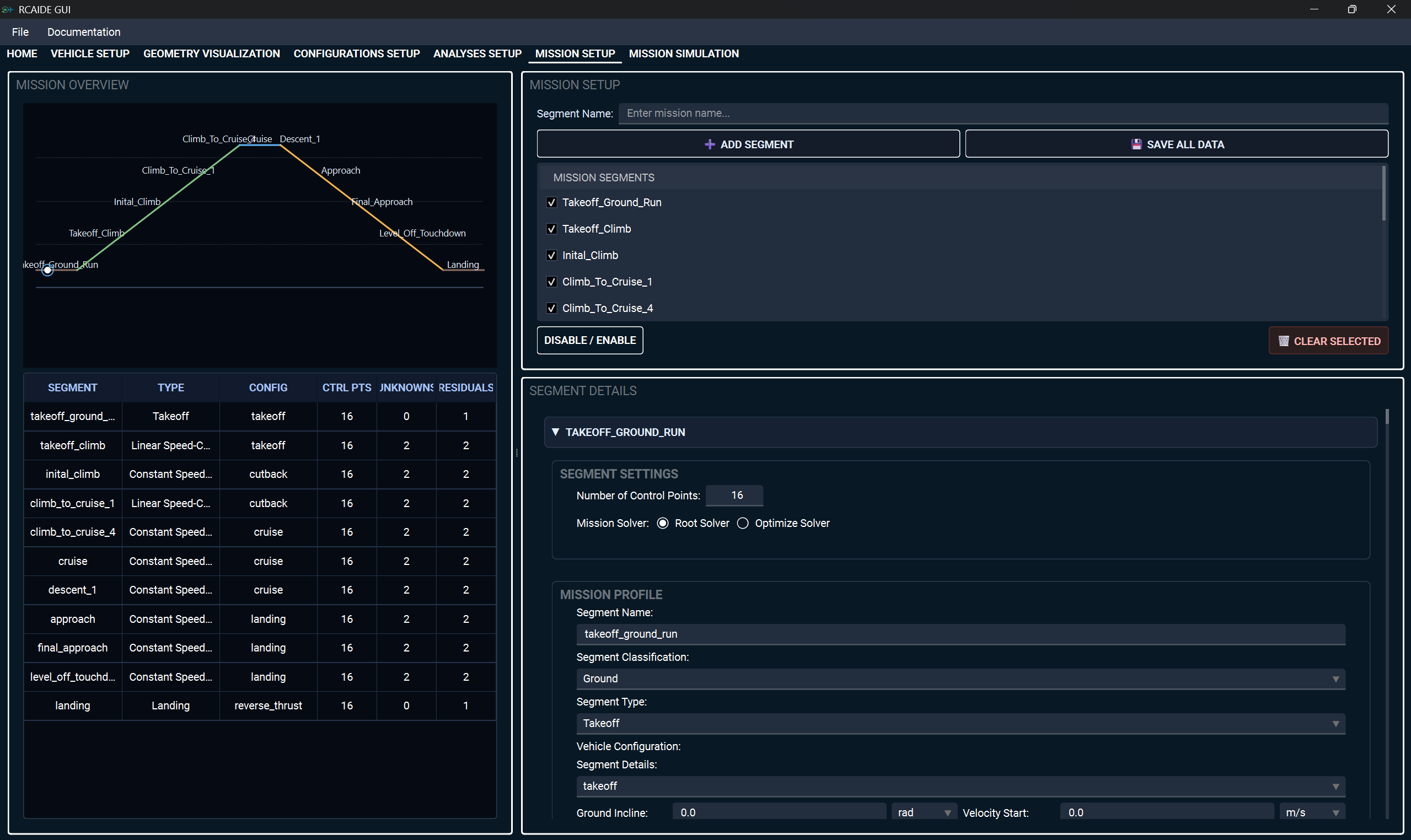
Create complete flight profiles by chaining takeoff, climb, cruise, descent, and landing segments with specific operating conditions, solver settings, control points, configurations, and analyses.
Mission Simulation
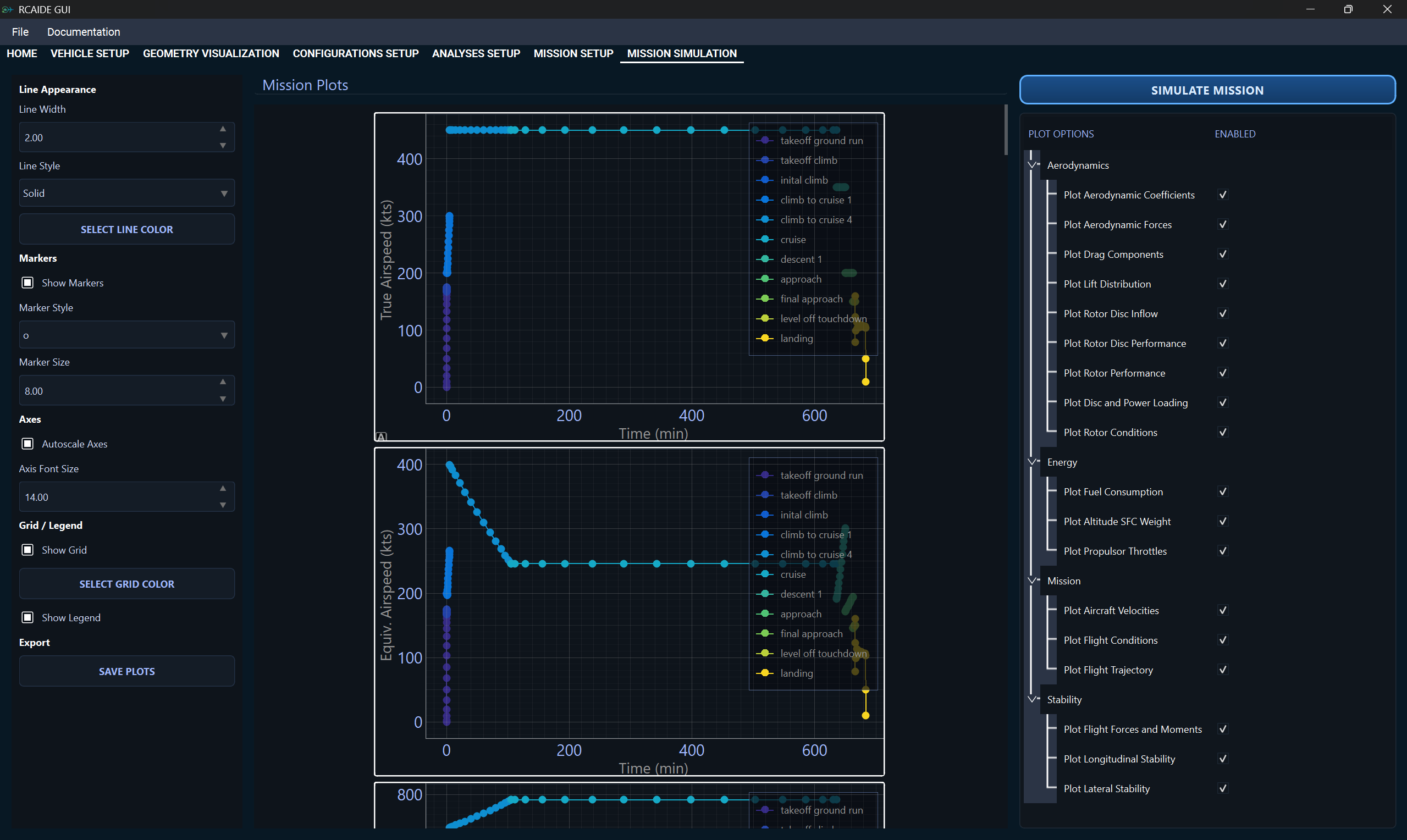
Execute RCAIDE solvers and review plots, numerical outputs, performance metrics, fuel burn, range, energy consumption, flight time, and stability characteristics.
Results Viewer
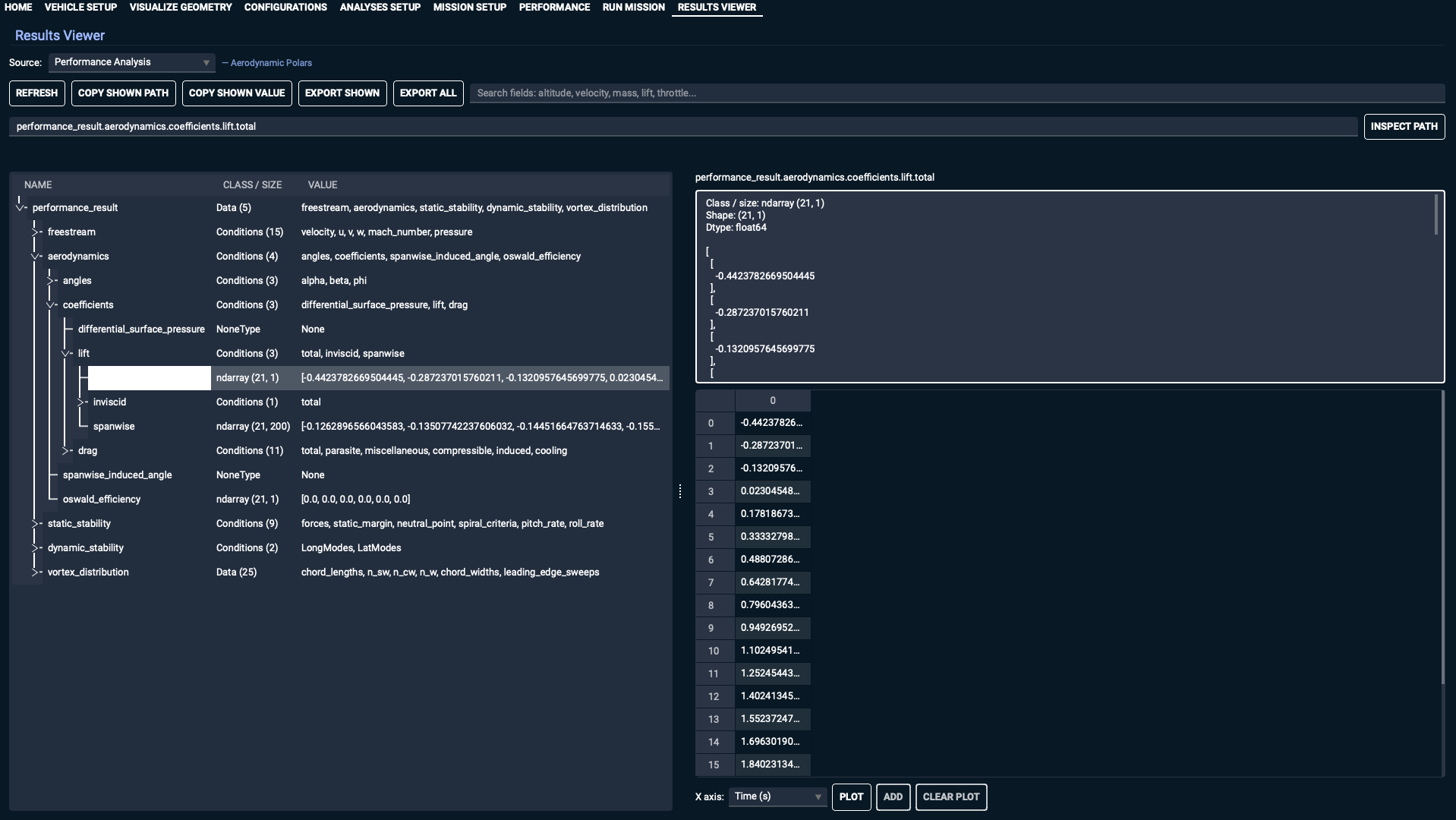
Open saved mission simulation output without rerunning the mission. The viewer works like a MATLAB-style data parser, letting users browse result variables, inspect data traces, and review mission outputs after a run is complete.
Performance
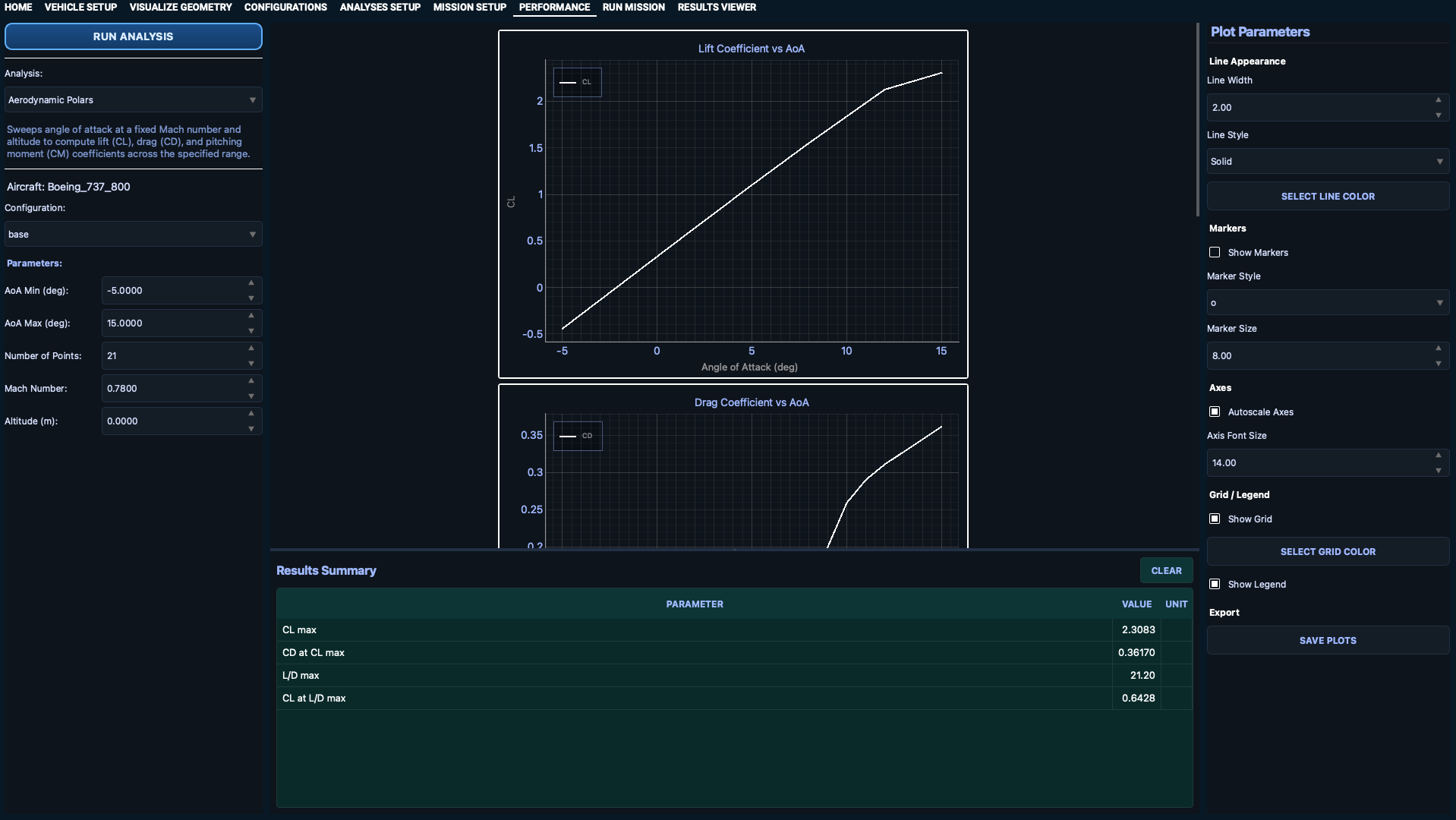
Evaluate aircraft-level performance metrics without constructing a full mission profile. Generate payload-range diagrams, V-n diagrams, takeoff and landing field length estimates, and aerodynamic polar sweeps for rapid design-space exploration.
Roadmap
The next two interface modules currently in development.